> For the complete documentation index, see [llms.txt](https://taejun.gitbook.io/tech/llms.txt). Markdown versions of documentation pages are available by appending `.md` to page URLs; this page is available as [Markdown](https://taejun.gitbook.io/tech/14-ci-cd-devops-sre/jenkins-1/jenkins-3-github.md).
# Jenkins 3 - github 연동
## Git Integration 설치

## Git 설정

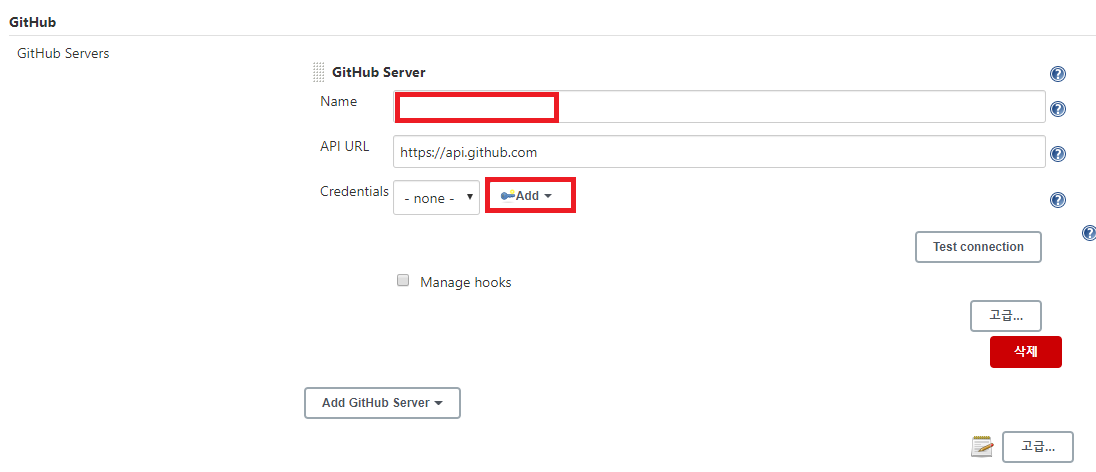\
name을 입력하고 Add 버튼 클릭
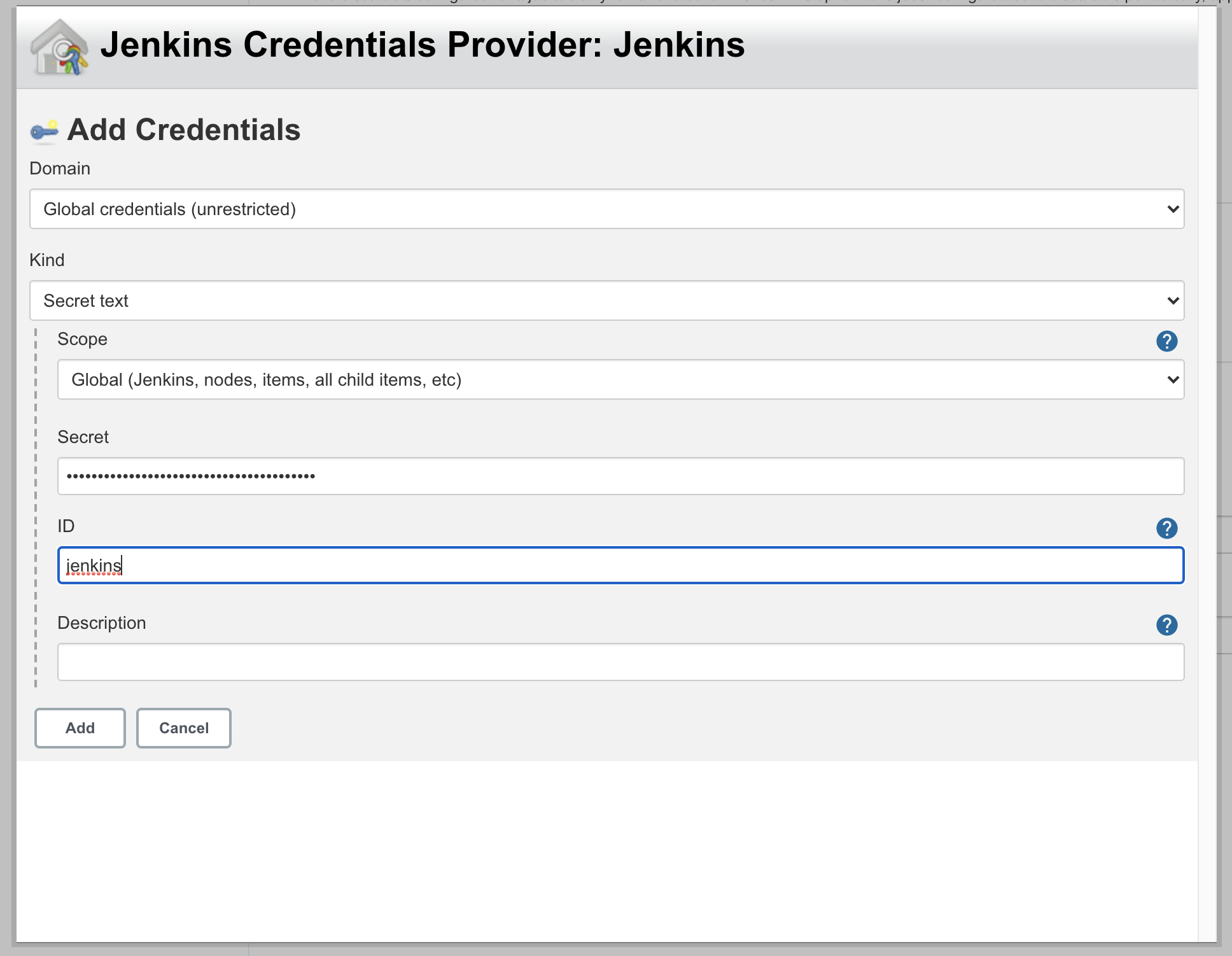
* Domain: Global credentials (unrestricted) 선택
* Kind : Secret text 선택
* Secret : 깃헙으로 부터 발급받은 토큰 키
* ID : 본인이 지정하는 식별자(ID) 입력
 * Add 버튼 옆에 있는 셀렉트 박스에서 추가했던 키를 선택후 테스트 커넥트를 클릭
* 유효하다면 하단에 저장버튼 클릭!
## Git 연동
\
새로운 아이템 클릭\
\
item name 작성 후 freestyle project 클릭후 ok 버튼 클릭\
\
깃허브 프로젝트 클릭후 내깃 주소 클릭\
\
Failed to connect to repository : Could not init\
만약 레포지토리 URL 입력 후 위같은 에러메세지가 뜬다면 도커 우분투에 apt-get install git을 해주면 된다.\
여기까지 입력되었으면 저장 클릭
Build Now 클릭후\
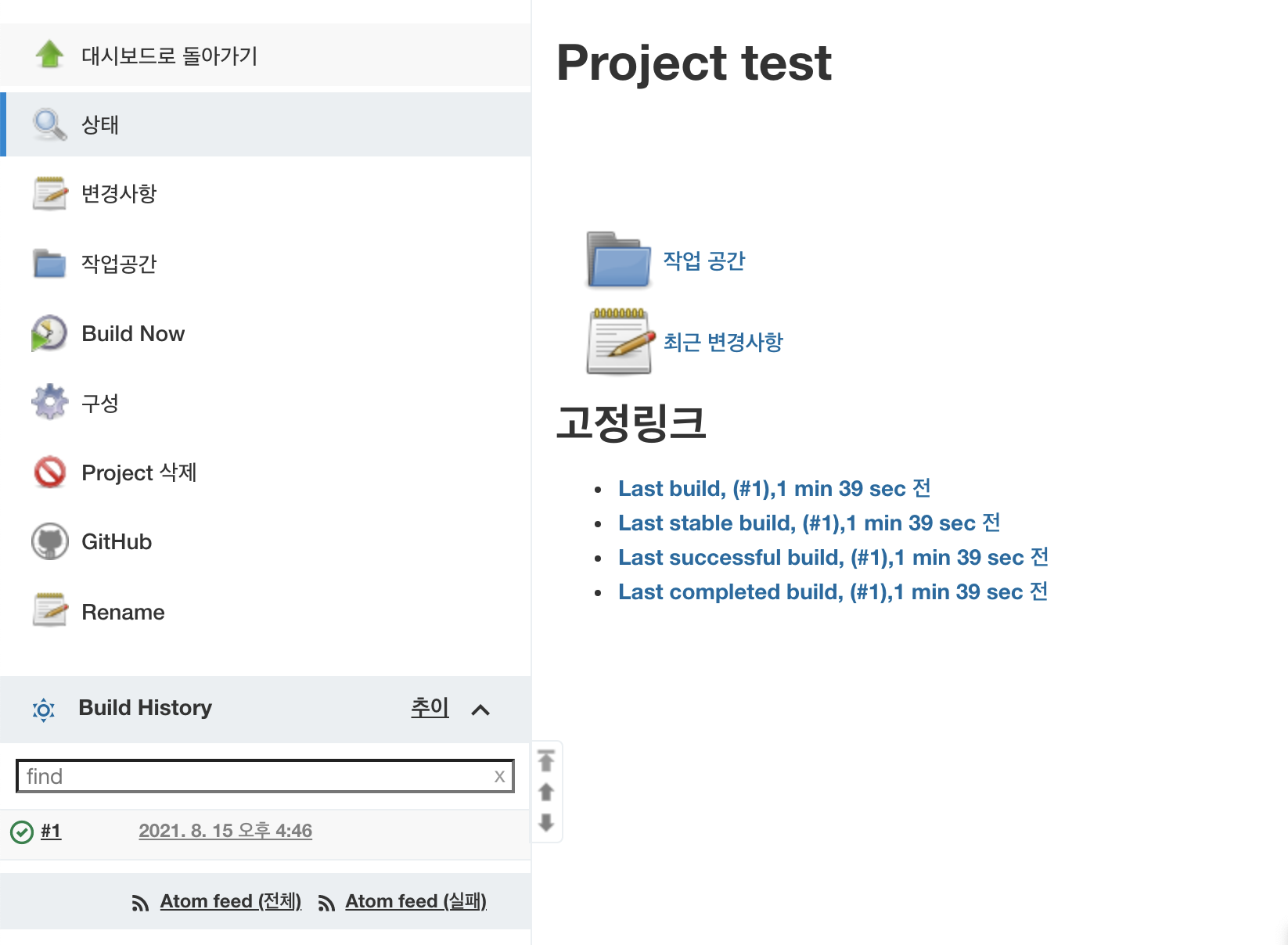\
BuildHistory를 보면 빌드가 성공한 것을 볼 수있음.
## jar 파일이 생성
프로젝트 구성에서 build클릭 후 excute shell 선택 후 다음과 같이 입력 하고 저장
```shell
echo ">>>> project Build Start!!"
./gradlew build
echo ">> pwd"
pwd
echo ">> go jar"
cd ./build/libs
JAR_NAME=$(ls|grep '0.0.1' | tail -n 1)
echo "jar name $JAR_NAME"
```
콘솔
```shell
Started by user cheol
Running as SYSTEM
Building in workspace /var/lib/jenkins/workspace/test
The recommended git tool is: NONE
No credentials specified
> git rev-parse --resolve-git-dir /var/lib/jenkins/workspace/test/.git # timeout=10
Fetching changes from the remote Git repository
> git config remote.origin.url https://github.com/thor/jenkins-test # timeout=10
Fetching upstream changes from https://github.com/thor/jenkins-test
> git --version # timeout=10
> git --version # 'git version 2.25.1'
> git fetch --tags --force --progress -- https://github.com/thor/jenkins-test +refs/heads/*:refs/remotes/origin/* # timeout=10
> git rev-parse refs/remotes/origin/master^{commit} # timeout=10
Checking out Revision 991e78dc134f5c929ba51a8ef56f69fa3088c2c7 (refs/remotes/origin/master)
> git config core.sparsecheckout # timeout=10
> git checkout -f 991e78dc134f5c929ba51a8ef56f69fa3088c2c7 # timeout=10
Commit message: "test"
> git rev-list --no-walk 991e78dc134f5c929ba51a8ef56f69fa3088c2c7 # timeout=10
[test] $ /bin/sh -xe /tmp/jenkins7079479207332199031.sh
+ echo >>>> project Build Start!!
>>>> project Build Start!!
+ ./gradlew build
Starting a Gradle Daemon (subsequent builds will be faster)
> Task :compileJava UP-TO-DATE
> Task :processResources UP-TO-DATE
> Task :classes UP-TO-DATE
> Task :bootJarMainClassName UP-TO-DATE
> Task :bootJar UP-TO-DATE
> Task :jar UP-TO-DATE
> Task :assemble UP-TO-DATE
> Task :compileTestJava UP-TO-DATE
> Task :processTestResources NO-SOURCE
> Task :testClasses UP-TO-DATE
> Task :test UP-TO-DATE
> Task :check UP-TO-DATE
> Task :build UP-TO-DATE
BUILD SUCCESSFUL in 5s
7 actionable tasks: 7 up-to-date
+ echo >> pwd
>> pwd
+ pwd
/var/lib/jenkins/workspace/test
+ echo >> go jar
>> go jar
+ cd ./build/libs
+ ls
+ grep 0.0.1
+ tail -n 1
+ JAR_NAME=jenkins-0.0.1-SNAPSHOT.jar
+ echo jar name jenkins-0.0.1-SNAPSHOT.jar
jar name jenkins-0.0.1-SNAPSHOT.jar
Finished: SUCCESS
```
\
출처 :
* Add 버튼 옆에 있는 셀렉트 박스에서 추가했던 키를 선택후 테스트 커넥트를 클릭
* 유효하다면 하단에 저장버튼 클릭!
## Git 연동
\
새로운 아이템 클릭\
\
item name 작성 후 freestyle project 클릭후 ok 버튼 클릭\
\
깃허브 프로젝트 클릭후 내깃 주소 클릭\
\
Failed to connect to repository : Could not init\
만약 레포지토리 URL 입력 후 위같은 에러메세지가 뜬다면 도커 우분투에 apt-get install git을 해주면 된다.\
여기까지 입력되었으면 저장 클릭
Build Now 클릭후\
\
BuildHistory를 보면 빌드가 성공한 것을 볼 수있음.
## jar 파일이 생성
프로젝트 구성에서 build클릭 후 excute shell 선택 후 다음과 같이 입력 하고 저장
```shell
echo ">>>> project Build Start!!"
./gradlew build
echo ">> pwd"
pwd
echo ">> go jar"
cd ./build/libs
JAR_NAME=$(ls|grep '0.0.1' | tail -n 1)
echo "jar name $JAR_NAME"
```
콘솔
```shell
Started by user cheol
Running as SYSTEM
Building in workspace /var/lib/jenkins/workspace/test
The recommended git tool is: NONE
No credentials specified
> git rev-parse --resolve-git-dir /var/lib/jenkins/workspace/test/.git # timeout=10
Fetching changes from the remote Git repository
> git config remote.origin.url https://github.com/thor/jenkins-test # timeout=10
Fetching upstream changes from https://github.com/thor/jenkins-test
> git --version # timeout=10
> git --version # 'git version 2.25.1'
> git fetch --tags --force --progress -- https://github.com/thor/jenkins-test +refs/heads/*:refs/remotes/origin/* # timeout=10
> git rev-parse refs/remotes/origin/master^{commit} # timeout=10
Checking out Revision 991e78dc134f5c929ba51a8ef56f69fa3088c2c7 (refs/remotes/origin/master)
> git config core.sparsecheckout # timeout=10
> git checkout -f 991e78dc134f5c929ba51a8ef56f69fa3088c2c7 # timeout=10
Commit message: "test"
> git rev-list --no-walk 991e78dc134f5c929ba51a8ef56f69fa3088c2c7 # timeout=10
[test] $ /bin/sh -xe /tmp/jenkins7079479207332199031.sh
+ echo >>>> project Build Start!!
>>>> project Build Start!!
+ ./gradlew build
Starting a Gradle Daemon (subsequent builds will be faster)
> Task :compileJava UP-TO-DATE
> Task :processResources UP-TO-DATE
> Task :classes UP-TO-DATE
> Task :bootJarMainClassName UP-TO-DATE
> Task :bootJar UP-TO-DATE
> Task :jar UP-TO-DATE
> Task :assemble UP-TO-DATE
> Task :compileTestJava UP-TO-DATE
> Task :processTestResources NO-SOURCE
> Task :testClasses UP-TO-DATE
> Task :test UP-TO-DATE
> Task :check UP-TO-DATE
> Task :build UP-TO-DATE
BUILD SUCCESSFUL in 5s
7 actionable tasks: 7 up-to-date
+ echo >> pwd
>> pwd
+ pwd
/var/lib/jenkins/workspace/test
+ echo >> go jar
>> go jar
+ cd ./build/libs
+ ls
+ grep 0.0.1
+ tail -n 1
+ JAR_NAME=jenkins-0.0.1-SNAPSHOT.jar
+ echo jar name jenkins-0.0.1-SNAPSHOT.jar
jar name jenkins-0.0.1-SNAPSHOT.jar
Finished: SUCCESS
```
\
출처 :
#### 참고